> ## Documentation Index
> Fetch the complete documentation index at: https://docs.transmuter.3mergen.com/llms.txt
> Use this file to discover all available pages before exploring further.
# Quickstart
> Go from business plan to deployed product in your first session.
This guide walks you through your first complete Plan Cast -- from signing up to launching a live product.
 ## End-to-end walkthrough
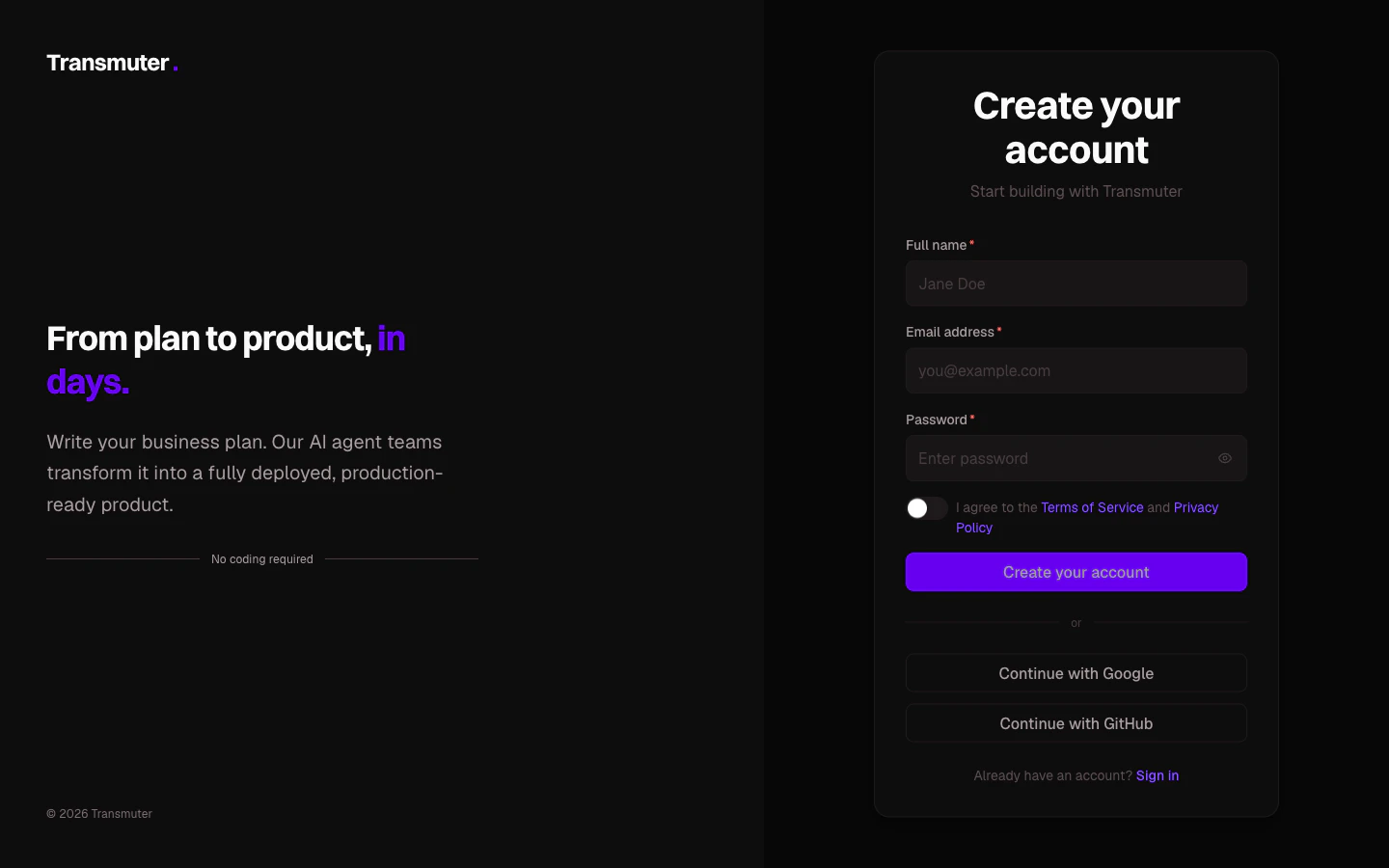
Go to [transmuter.3mergen.com/signup](https://transmuter.3mergen.com/signup) and create your account using email, Google, or GitHub. After signing up, answer three quick questions so Transmuter can personalize your experience.
A personal workspace is created for you automatically. You can create additional workspaces later for different projects or clients.
From your dashboard, click **Create Project**. Give your project a name and description, then choose how to add your business plan:
* **Upload a file** -- drag and drop a PDF, Word, Markdown, or text file
* **Write in the editor** -- use our built-in editor with live preview
* **Start from a template** -- choose from SaaS, Marketplace, Internal Tool, Mobile App, or E-commerce templates
Our AI will analyze your plan and may suggest ways to strengthen it. You can accept, skip, or edit these suggestions.
Click **Start Plan Cast** on your project page. Transmuter begins by having a friendly conversation with you about your product's technology needs. It reads your business plan, identifies any gaps, and asks a few plain-language questions.
You do not need any technical knowledge for this step. Each question comes with visual option cards and plain-language explanations. If you are unsure about something, pick the recommended option.
At the end of this conversation, Transmuter generates a technology setup tailored to your product. Review and approve it to continue.
Before building can begin, you need to connect three free cloud accounts where your product will live:
1. **GitHub** -- where your code is stored securely
2. **Vercel** -- what makes your product fast and available worldwide
3. **Convex** -- your product's database and backend
Each step includes a simple guide. If you do not have these accounts yet, Transmuter walks you through creating them -- it takes about 5 minutes total.
Once everything is connected, the building process begins. You can follow along in real time on the progress dashboard, which shows:
* What is currently happening in plain language
* A progress bar showing overall completion
* Estimated time remaining
Building happens in the background. You can close your browser and come back later -- Transmuter will email you when your attention is needed.
At two key checkpoints, Transmuter pauses and asks you to review what has been generated:
1. **Product requirements** -- the detailed breakdown of what your product will do
2. **Technical specifications** -- how the product will be structured
Read through each section and approve, request changes, or add notes. Nothing gets built until you are satisfied with the plan.
After building and quality checks are complete, you will see a summary of your product's audit results -- security, accessibility, performance, and code quality scores.
Click **Deploy** to launch your product. Transmuter handles everything: pushing code to GitHub, deploying to Vercel, and setting up your database. Within minutes, your product is live at a real URL.
## What happens next?
Once your product is live, you can:
* [Monitor its health](/journeys/post-launch/monitoring-health) from the Post-Launch Hub
* [Submit feedback](/journeys/post-launch/submitting-feedback) to request changes and improvements
* [Set up a custom domain](/journeys/deploying/custom-domains) for a professional URL
* [Invite team members](/journeys/managing-account/team-members) to collaborate
## End-to-end walkthrough
Go to [transmuter.3mergen.com/signup](https://transmuter.3mergen.com/signup) and create your account using email, Google, or GitHub. After signing up, answer three quick questions so Transmuter can personalize your experience.
A personal workspace is created for you automatically. You can create additional workspaces later for different projects or clients.
From your dashboard, click **Create Project**. Give your project a name and description, then choose how to add your business plan:
* **Upload a file** -- drag and drop a PDF, Word, Markdown, or text file
* **Write in the editor** -- use our built-in editor with live preview
* **Start from a template** -- choose from SaaS, Marketplace, Internal Tool, Mobile App, or E-commerce templates
Our AI will analyze your plan and may suggest ways to strengthen it. You can accept, skip, or edit these suggestions.
Click **Start Plan Cast** on your project page. Transmuter begins by having a friendly conversation with you about your product's technology needs. It reads your business plan, identifies any gaps, and asks a few plain-language questions.
You do not need any technical knowledge for this step. Each question comes with visual option cards and plain-language explanations. If you are unsure about something, pick the recommended option.
At the end of this conversation, Transmuter generates a technology setup tailored to your product. Review and approve it to continue.
Before building can begin, you need to connect three free cloud accounts where your product will live:
1. **GitHub** -- where your code is stored securely
2. **Vercel** -- what makes your product fast and available worldwide
3. **Convex** -- your product's database and backend
Each step includes a simple guide. If you do not have these accounts yet, Transmuter walks you through creating them -- it takes about 5 minutes total.
Once everything is connected, the building process begins. You can follow along in real time on the progress dashboard, which shows:
* What is currently happening in plain language
* A progress bar showing overall completion
* Estimated time remaining
Building happens in the background. You can close your browser and come back later -- Transmuter will email you when your attention is needed.
At two key checkpoints, Transmuter pauses and asks you to review what has been generated:
1. **Product requirements** -- the detailed breakdown of what your product will do
2. **Technical specifications** -- how the product will be structured
Read through each section and approve, request changes, or add notes. Nothing gets built until you are satisfied with the plan.
After building and quality checks are complete, you will see a summary of your product's audit results -- security, accessibility, performance, and code quality scores.
Click **Deploy** to launch your product. Transmuter handles everything: pushing code to GitHub, deploying to Vercel, and setting up your database. Within minutes, your product is live at a real URL.
## What happens next?
Once your product is live, you can:
* [Monitor its health](/journeys/post-launch/monitoring-health) from the Post-Launch Hub
* [Submit feedback](/journeys/post-launch/submitting-feedback) to request changes and improvements
* [Set up a custom domain](/journeys/deploying/custom-domains) for a professional URL
* [Invite team members](/journeys/managing-account/team-members) to collaborate